Mobile App Requirements & Devices

Setup Requirements

You don't need to have anything turned on in your system to download and start using the mobile app.

However, note that requirements, settings, and role permissions applicable on the web app are also applicable on mobile, including:

  • Required fields and field validations.
  • The availability of integrations.
  • The need for an agreement form with at least one digital signature field in order to capture signatures.

Supported Devices

  • Mobile devices. The mobile app is compatible with iOS (Apple tablet or iPhone) and Android devices running at least the current OS version, or one version prior.
  • Mobile card readers for credit card processing with Stripe. If your location uses a Credit Card Processing integration provided by Stripe, the following credit card readers are supported:
    • Stripe Reader M2
    • BBPOS Chipper 2X BT
    • ClosedHow to pair a supported card reader:

      You can pair a reader from two places in the app: 1) Settings or 2) during the mobile open process.

      1. Make sure you've allowed Bluetooth to use the card reader on your mobile device.
      2. Make sure the card reader device is powered on, charged to more than 50%, and in range to your mobile device.
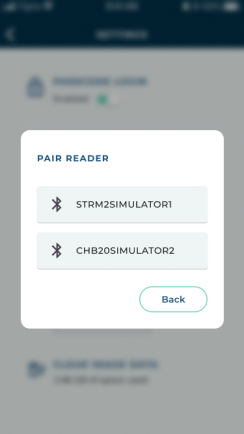
      3. Begin the pairing process in the app, either within Settings ( >  > PAIR READER, or the Pair Reader button on the agreement.
      4. On the Pair Reader dialog, choose the Device ID of the card reader.
      5. The system checks whether a firmware update is available for the reader. ClosedRead more:
        • If the update is required, the update will begin installation automatically.
        • If the update is optional, an Optional Update message is displayed: "There's an update for this reader device's firmware from [Version] to the [Latest Version]. It should take approximately 1 to 2 minutes. Do you wish to update?" Tap Yes to continue updating the device, or No to return to the agreement without updating the device at this time. Note that the update may become required in the future.

        If performing a firmware update, the update may take 1 to 2 minutes. The card reader's LED light next to the power button rapidly flashes blue and orange when it begins installing a software update. A message is displayed when the firmware update is successful. When the card reader is ready to use, the LED light will return to a slow blinking blue light.

      6. If pairing is successful, you can use the device to take capture credit cards.
  • Printing. For printing from the iOS mobile app, an AirPrint-compatible printer and a Wi-Fi access point is required. See http://support.apple.com/kb/ht4356 for a list of AirPrint-compatible printers.